
Azure Communication Services
This guide connects Azure Communication Services to Live Hub. Complete the following steps:
- Create a SIP connection in Live Hub
- Configure a Direct Routing domain in your Azure Communication Services account
- Verify the Live Hub domain
- Configure the Direct Routing SBC in your Azure Communication Services account
Create a SIP connection in Live Hub
To create the SIP connection that represents your Azure Communication Services account:
-
Log in to Live Hub.
-
In the Navigation pane, select SIP connections, and then click Add new SIP connection.
-
Select the General tab:
-
Under General:
- In the 'Name' field, enter a unique SIP connection name (for example, ACS).
- From the 'Provider type' drop-down list, select UC Platform.
- From the 'Provider' drop-down list, select Azure Communication Services.
-
-
Select the Incoming tab:
- Select the 'FQDN (Request-URI)' check box.
- Copy the 'SIP connection FQDN' value that appears. You need it when you configure Direct Routing in your Azure Communication Services account.
-
Click Create.
Configure a Direct Routing domain in your Azure Communication Services account
To configure a Direct Routing domain in the Azure Communication Services account:
-
Log in to the Azure portal as a user with Administrator privileges for Azure Communication Services.
-
In the search bar, enter
Communication Services, and then locate your Azure Communication Services instance. -
Open the Direct Routing page.
-
On the Domains tab, click Add domain:

-
Calculate the Live Hub base domain by removing the first element from the 'SIP connection FQDN'. For example, if the FQDN is
fjoigfgmeuol.sip1-region1.audiocodes.io, the Live Hub base domain issip1-region1.audiocodes.io. -
Enter the Live Hub base domain, and then click Confirm.
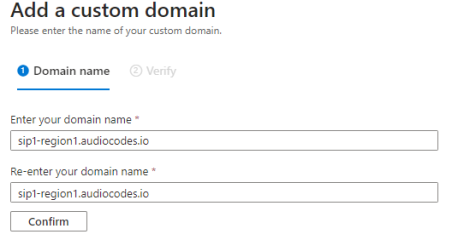
-
Click Add, and then wait for the domain to be added.
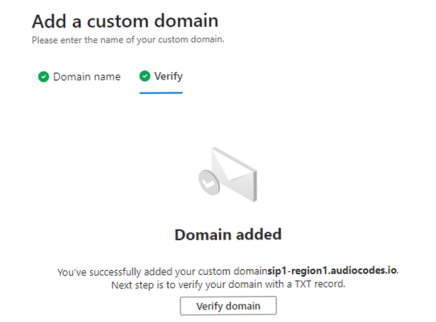
-
Click Verify domain.
-
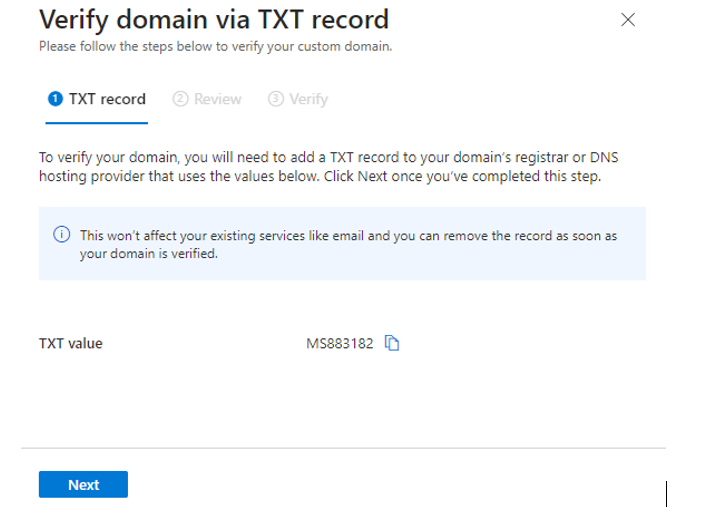
On the TXT record page that appears, copy the TXT record value for domain verification. Do not click Verify. Instead, continue with Verify the Live Hub domain.
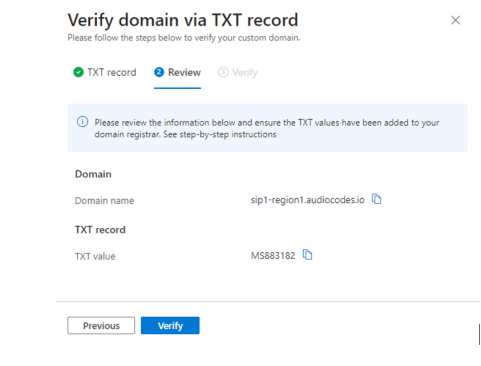
Verify the Live Hub domain
To verify the Live Hub domain for specific Azure Communication Services instances:
-
Log in to Live Hub.
-
In the Navigation pane, select SIP connections, and then locate the Azure Communication Services SIP connection that you created earlier.
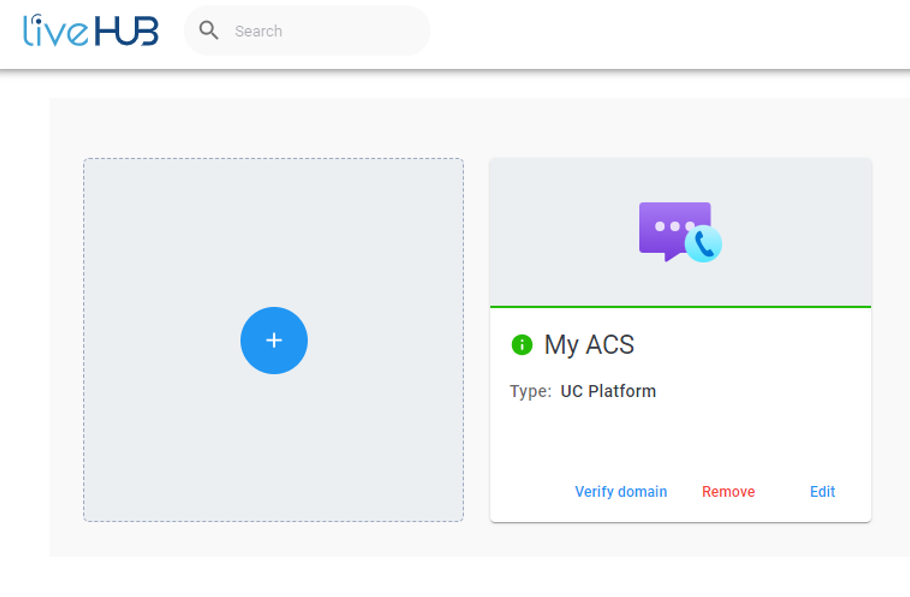
-
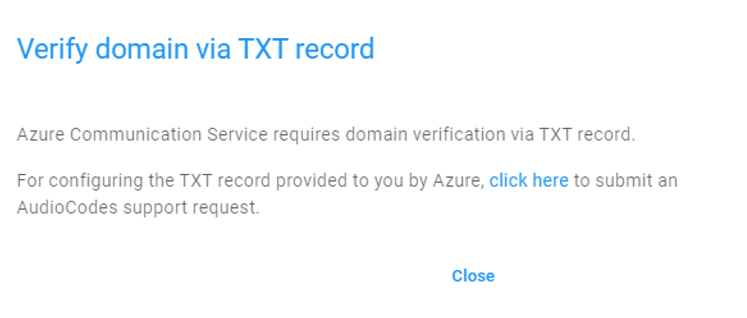
On the SIP connection card, click Verify domain. You are prompted to submit a support request for domain verification.
-
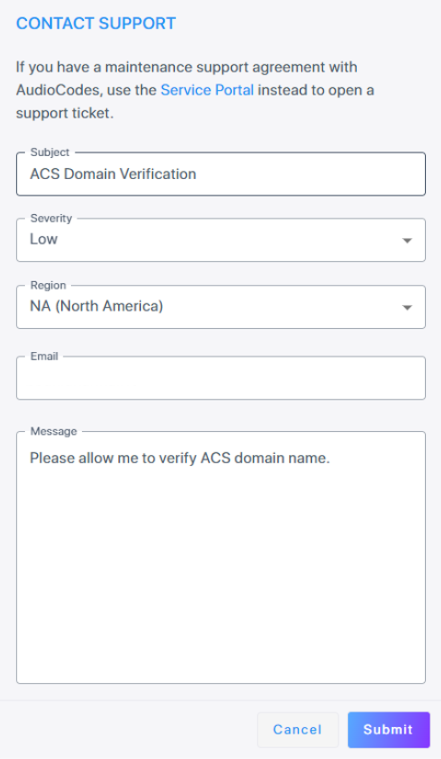
Click the provided link to submit a new support request.
-
In the 'Subject' field, enter ACS Domain Verification.
-
In the 'Message' field, state that you are requesting domain verification.
-
Click Submit.
-
-
Wait for a response from AudioCodes support confirming that domain verification is enabled for your account.
-
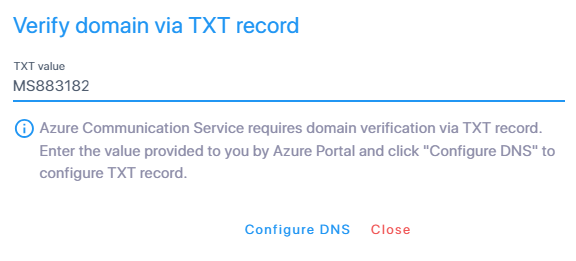
On the SIP connection card, click Verify domain again. You are prompted to enter the TXT value.
-
Enter the TXT value, and then click Configure DNS.
-
Log in to the Azure portal.
-
Go to your Azure Communication Services instance.
-
Open the Direct Routing page.
-
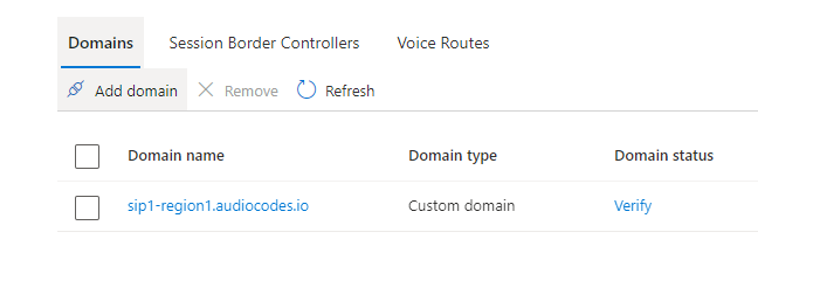
On the Domains tab, locate the Live Hub domain that you added earlier, and then click Verify.
-
On the Verify domain via TXT record page, click Next.
-
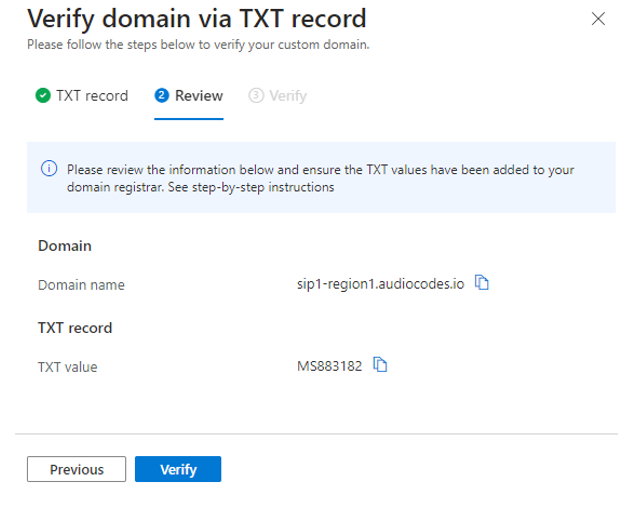
Click Verify.
-
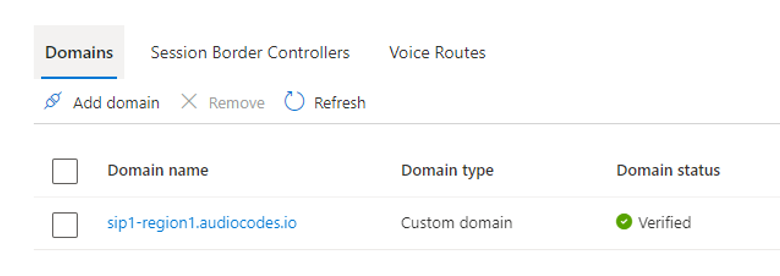
Wait for Azure Communication Services to complete domain verification. When that happens, the domain status changes to Verified.
Configure the Direct Routing SBC in your Azure Communication Services account
To configure the Direct Routing SBC in your Azure Communication Services account:
-
Log in to the Azure portal.
-
Go to your Azure Communication Services instance.
-
Open the Direct Routing page.
-
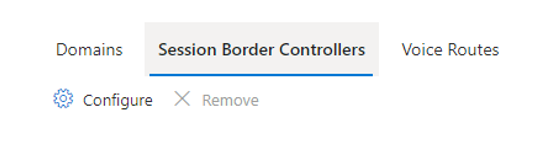
Select the Session Border Controllers tab, and then click Configure.
-
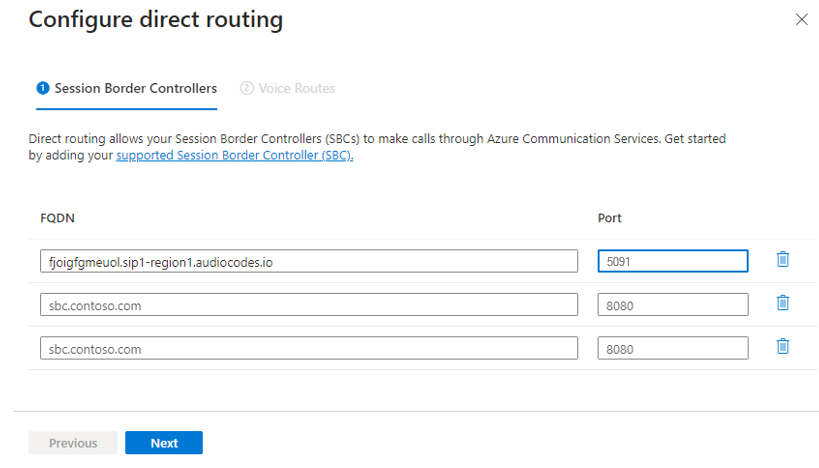
On the Session Border Controllers tab:
-
Configure the first line:
- In the 'FQDN' field, enter your 'SIP connection FQDN' value, for example
fjoigfgmeuol.sip1-region1.audiocodes.io. - In the 'Port' field, enter
5091.
- In the 'FQDN' field, enter your 'SIP connection FQDN' value, for example
-
Click Next.
-
-
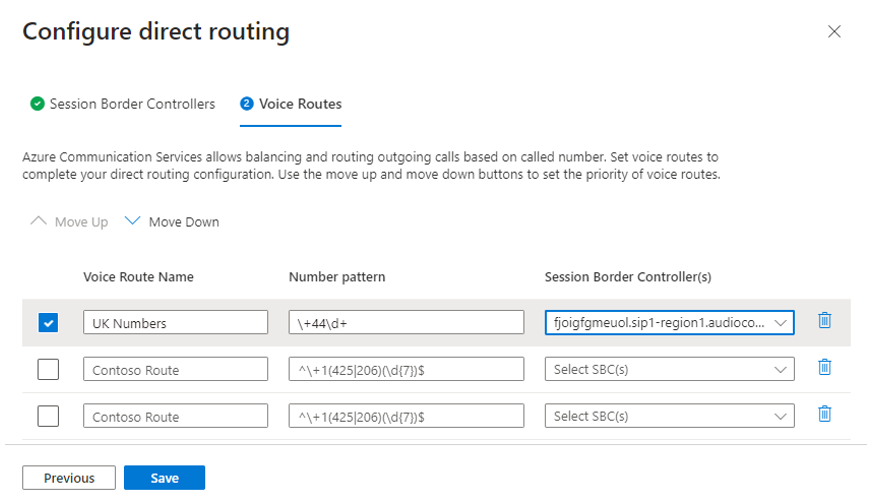
On the Voice Routes tab:
-
Configure the voice routes that Azure Communication Services routes to Live Hub. For the Session Border Controller, select the 'SIP connection FQDN' value that matches the first line configured on the Session Border Controllers tab.
-
For example, use the following configuration to route all calls starting with the
+44prefix to Live Hub:- Name: LiveHub
- Number pattern:
\+44\d+ - Session Border Controller:
fjoigfgmeuol.sip1-region1.audiocodes.io
-
Click Save.
-
-
Wait up to 1 hour for your configuration to propagate across all Azure Communication Services platform elements.